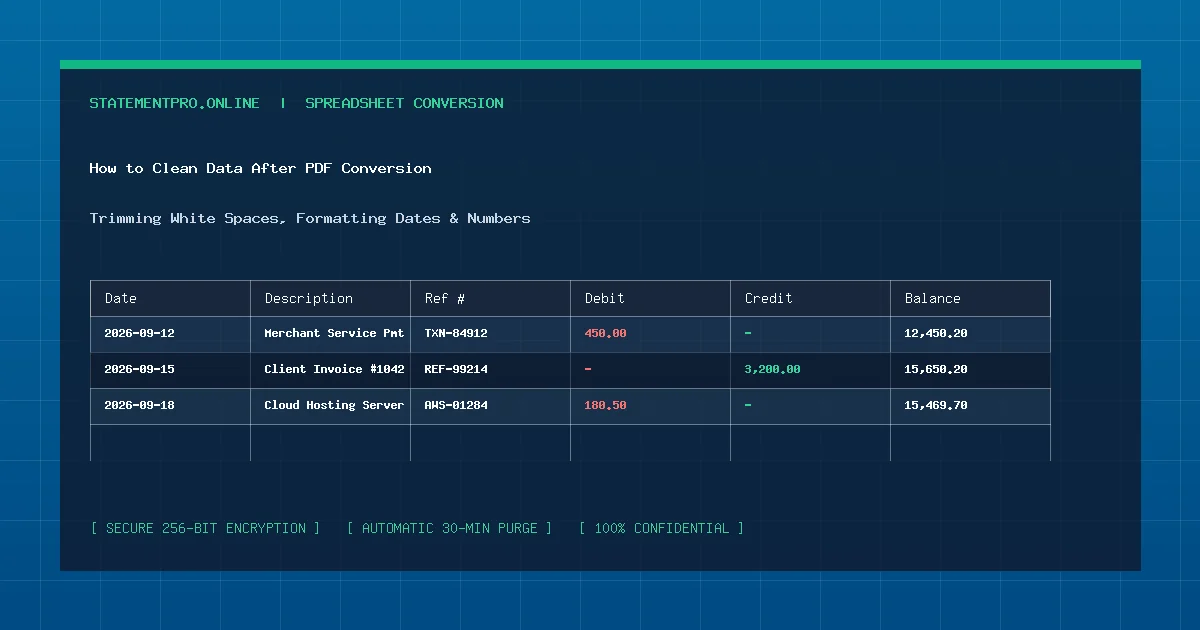
Converting a static PDF document or bank statement into Microsoft Excel is a massive productivity leap. Yet, opening a freshly converted workbook often reveals typical post-extraction rough edges: extra blank rows between page breaks, numbers stubbornly formatted as left-aligned text, currency symbols interfering with mathematical formulas, and merchant descriptions trailing invisible whitespace. Attempting to build pivot tables or import uncleaned workbooks into accounting platforms like QuickBooks or Xero leads to errors. Knowing how to clean data after PDF to Excel conversion ensures your spreadsheets are 100% accurate, professional, and audit-ready.
What Is Post-Conversion Data Cleaning?
Post-conversion data cleaning is the structured process of inspecting, standardizing, reformatting, and validating raw spreadsheet cells generated by PDF extraction software.
Because PDF documents prioritize visual layout rather than tabular logic, extraction algorithms occasionally inherit layout artifacts—such as multi-line narrative wraps, non-breaking whitespace characters, or unformatted dates. Cleaning transforms these irregular visual tokens into strict data types: authentic dates (YYYY-MM-DD), signed floating-point numbers, and sanitized alphanumeric strings.
Why Is Data Cleaning Essential for Financial Workflows?
Executing thorough spreadsheet hygiene before loading numbers into production systems yields immense benefits:
- Formula Integrity: Native Excel functions like
=SUM(),=AVERAGE(), and=VLOOKUP()fail or return erroneous zeroes when operating on numbers stored as text strings. - Flawless Accounting Imports: Accounting software engines require strict CSV and XLSX column templates. Extraneous header rows or blank rows cause entire batch file imports to abort.
- Elimination of Duplication Errors: Multi-page statements frequently reprint header summaries on every sheet. Cleaning removes duplicate headers that would otherwise inflate financial totals.
- Accurate Sorting and Filtering: Standardizing date formats ensures that sorting chronologically works seamlessly across multiple months and years.
The 5 Core Post-Conversion Cleaning Operations
Whenever you convert a document using StatementPro or another converter, execute these five proven spreadsheet techniques:
1. Stripping Trailing Whitespace with TRIM and CLEAN
Converted text often contains invisible spaces or unprintable ASCII control characters. Insert a temporary column and apply:
=TRIM(CLEAN(SUBSTITUTE(B2, CHAR(160), " ")))
This formula strips standard spaces, wipes non-printing line-break characters, and converts non-breaking web spaces (CHAR(160)) into standard single spaces.
2. Converting "Text Numbers" to Authentic Numeric Values
If financial figures align to the left side of cells or show green error triangles in the corner, Excel treats them as text. The fastest remedy is:
- Highlight the numeric column.
- Navigate to the Data tab on the Excel ribbon.
- Click Text to Columns.
- Click Finish without changing any settings.
Excel immediately scans every cell in the column and casts text numbers into authentic numeric floats.
3. Mass Deleting Extraneous Blank Rows
To eliminate phantom empty rows without manual hunting:
- Select your entire table range from row 1 to the bottom.
- Press F5 (or
Ctrl + G) to open the Go To dialog box. - Click Special... in the bottom-left corner.
- Select the Blanks radio button and click OK.
- Right-click any selected blank cell, click Delete, and choose Entire Row.
4. Normalizing Fragmented Date Columns
Bank statements use diverse date formats: 09/12/2026, 12-Sep-26, or 20260912. To standardize dates for chronological sorting, use =DATEVALUE(A2) or use the Short Date formatting dropdown under the Home tab.
5. Removing Embedded Currency Symbols and Parentheses
Some PDF tables extract monetary amounts with leading symbols (e.g., $ 1,450.00) or accounting parentheses for negative balances (e.g., (450.00)). Use Excel’s Find and Replace (Ctrl + H) to replace dollar signs and commas with nothing, or use the formula =IF(ISNUMBER(FIND("(", D2)), -1 * SUBSTITUTE(SUBSTITUTE(D2, "(", ""), ")", ""), D2) to convert parentheses into standard minus signs.
Step-by-Step Guide: Complete Cleaning Workflow
Follow this systematic four-step procedure to clean any converted statement:
Step 1: Save a Master Backup Copy
Before applying formulas or deleting rows, duplicate your raw conversion file (e.g., saving statement_master_raw.xlsx). Always retain an unaltered backup to compare against during auditing.
Step 2: Inspect Column Alignments
Scan down each column to ensure all dates reside in column A, descriptions in column B, reference IDs in column C, and transaction amounts in columns D and E. If an irregular transaction caused columns to shift right, cut and paste the displaced cells back into alignment.
Step 3: Execute Automated Sanitization
Apply Text to Columns to your amount columns, run Go To Special > Blanks to purge empty page-break lines, and format dates consistently across the entire sheet.
Step 4: Execute a Reconciling Balance Audit
Write a summation formula =SUM(Credit_Range) - SUM(Debit_Range) at the base of your ledger. Verify that the net calculated movement matches the closing balance difference on your original statement header.
Practical Example: Fictional Post-Conversion Cleanup
Examine how a raw, uncleaned extraction is transformed into a sanitized ledger:
Raw Extraction (Before Cleanup):
| Date | Narrative | Amount | Note |
|---|---|---|---|
| 09/02/2026 | " Acme Freight LLC " | "$ 450.00" | Uncleaned string with spaces |
| - | - | - | Unwanted blank page break |
| 09/05/2026 | Cascade Consulting Wire | "(1,200.00)" | Parentheses text formatting |
Sanitized Spreadsheet (After Cleanup):
| Date | Narrative | Debit | Credit |
|---|---|---|---|
| 2026-09-02 | Acme Freight LLC | 450.00 | - |
| 2026-09-05 | Cascade Consulting Wire | 1200.00 | - |
All extraneous spaces are stripped, the empty row is purged, dates follow ISO standards, and monetary amounts are pure numeric values ready for accounting analysis.
Common Problems Encountered During Data Cleaning
- Unintended Deletions with Go To Blanks: If a legitimate transaction simply lacks a check reference number, deleting rows based on blank reference cells will delete valid transactions. Always select blanks using a mandatory column like Date.
- Leading Zero Loss on Bank Identifiers: Applying numeric formatting to checking account numbers or routing transit numbers strips leading zeros (e.g.,
009412becomes9412). Keep identifier columns formatted strictly as Text. - Formula Dependency Overwrites: If you use helper formula columns like
=TRIM(B2)and delete column B immediately, Excel throws#REF!errors. Always Copy > Paste Values before deleting helper columns.
Common Mistakes to Avoid
- Skipping Copy-Paste Values: Always convert your helper cleanup formulas into static text values (
Ctrl + Alt + V > Values) so the workbook remains self-contained. - Overlooking European Semicolon Delimiters: If numbers contain commas as decimal separators (e.g.,
1.450,50 €), converting without adjusting regional decimal settings will cause math errors. - Failing to Audit Totals: Never assume cleaning formulas worked without checking that the total debit sum matches the printed PDF header.
Privacy and Data Security Protocols
Post-conversion cleaning often involves confidential business records. Maintain strict security protocols:
- Perform spreadsheet cleaning locally on secure, password-protected hardware.
- Use converters like StatementPro that delete temporary server-side files within 30 minutes.
- Store archived workbooks in encrypted directories or secure cloud drives with multi-factor authentication.
Frequently Asked Questions
How do I combine split description rows into one line?
Use the CONCATENATE formula or ampersand operator: =B2 & " " & B3. Then copy the resulting combined text, paste as values into row 2, and delete row 3.
Can I automate post-conversion cleaning with a macro?
Yes. You can record a simple Visual Basic for Applications (VBA) macro that automatically runs Text-to-Columns, deletes blank rows, and trims text across active worksheets with a single keystroke.
Why does StatementPro reduce the need for manual data cleaning?
StatementPro incorporates heuristic normalization directly into its extraction engine, automatically stripping header banners, isolating debit/credit columns, and formatting numeric cells during conversion.
Related StatementPro Tools
- PDF to Excel Converter: High-precision financial parser designed to produce clean, pre-structured spreadsheets.
- PDF to CSV Converter: Export clean delimiter-separated transaction feeds ready for database ingestion.
- CSV to Excel Converter: Re-format raw CSV files into beautifully styled, audit-ready workbooks.
Related Guides & Tutorials
- How to Check a Converted Excel File for Errors
- How to Remove Duplicate Rows in Excel
- How to Organize Transaction Data in Excel
- How to Convert a PDF Bank Statement to Excel
Conclusion
Mastering how to clean data after PDF to Excel conversion turns messy raw extractions into impeccable financial assets. By applying simple, reliable techniques—such as Text-to-Columns, TRIM functions, and balance reconciliation checks—you ensure your spreadsheets remain 100% reliable for accounting, reporting, and auditing.