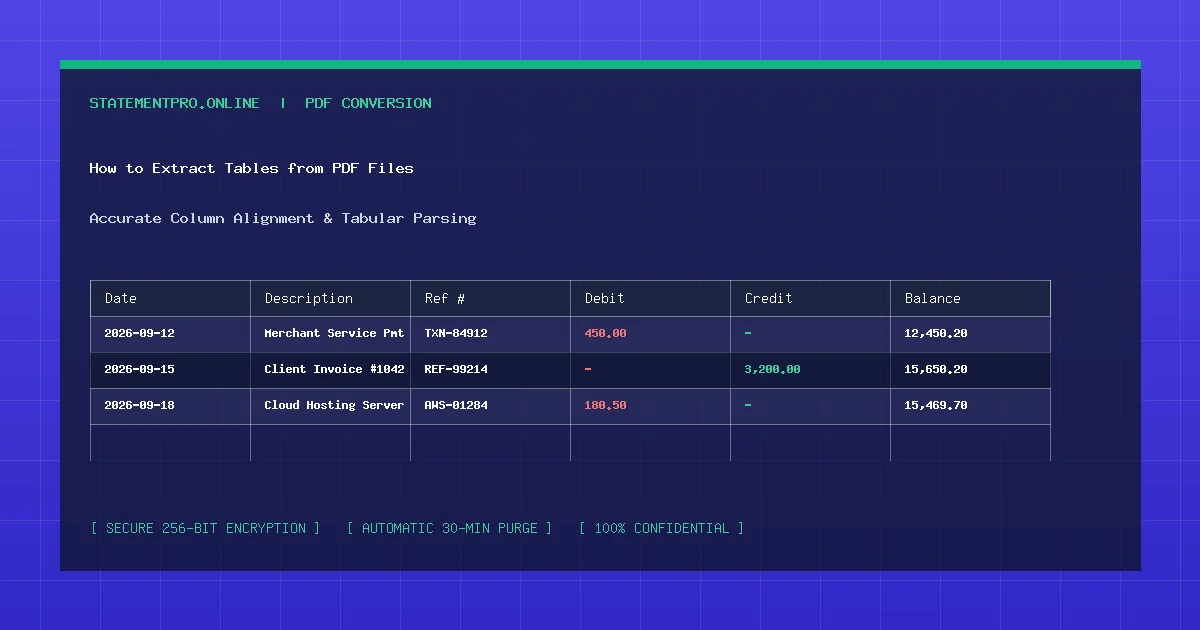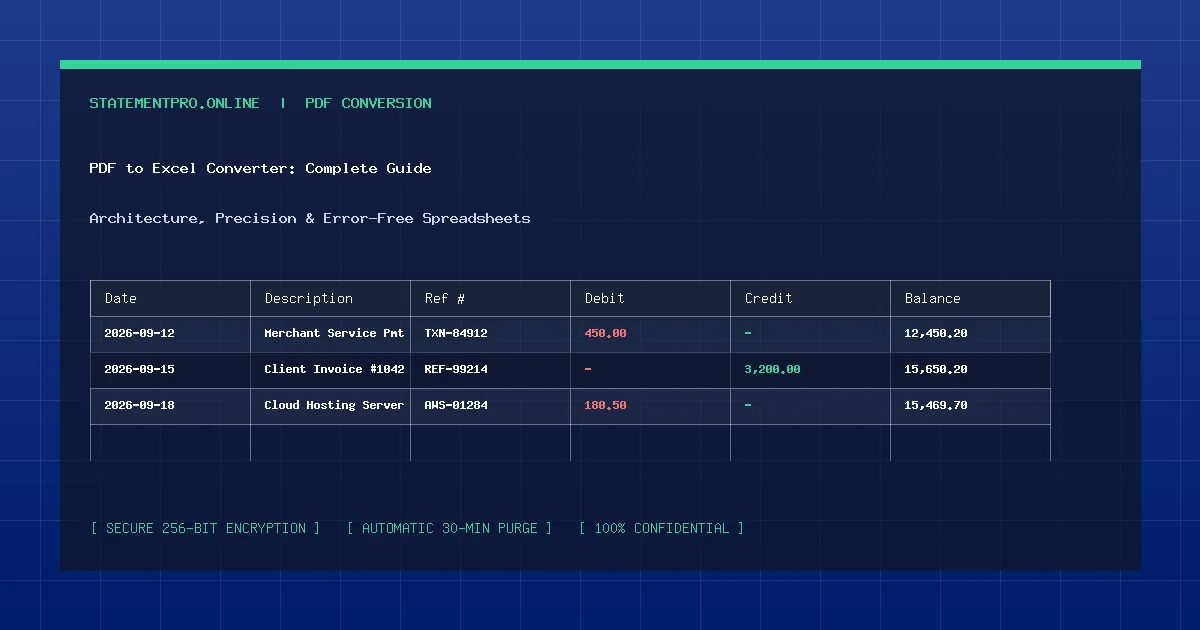
Accounting applications such as QuickBooks Online, Xero, Sage, and Wave require structured data feeds to reconcile general ledger accounts. While banks readily generate electronic PDF statements, nearly all major accounting software packages reject PDF files during bank feed imports. To bridge this technological gap, bookkeepers and business owners must convert their bank statement PDF to CSV. A properly formatted CSV file provides the exact column structure needed to populate accounting registers without manual typing.
What Is Bank Statement PDF to CSV Conversion?
Bank statement PDF to CSV conversion is the translation of complex, visual document layouts into plain text Comma-Separated Values (.csv). In a CSV file, each line represents a single financial transaction, and commas separate specific data attributes such as transaction date, payee narrative, reference numbers, debit debits, credit additions, and account balances.
Because CSV is an open, unformatted plain-text standard, it acts as a universal bridge across disparate operating systems, databases, enterprise resource planning (ERP) platforms, and spreadsheet tools.
Why Is CSV Format Ideal for Accounting Software?
While Microsoft Excel files are outstanding for visual analysis, CSV is the preferred ingest format for accounting platforms for several compelling reasons:
- Universal Machine Compatibility: CSV files contain zero proprietary binary styling, XML tags, or macro scripts. Any database or financial parser can parse raw CSV lines with minimal processing overhead.
- Strict Column Mapping: Accounting software requires strict 3-column (Date, Description, Amount) or 4-column (Date, Description, Debit, Credit) mapping. CSV enables explicit mapping during import wizards.
- Lightweight File Footprint: A multi-year transaction log consisting of 10,000 entries consumes less than 500 KB in CSV format, enabling rapid uploads even on constrained networks.
- Elimination of Hidden Styling Glitches: Excel workbooks can harbor hidden formulas, merged headers, or invisible cell formatting that confuse automated banking feeds. CSV strips away visual noise to deliver pure raw data.
How Does the PDF to CSV Engine Operate?
Extracting CSV records from a PDF statement requires rigorous computational parsing:
- Glyph Stream Extraction: The parser scans character codes and coordinates within the PDF text layer to assemble individual words into complete sentences.
- Date Pattern Recognition: Using localized regular expressions, the engine identifies standardized transaction dates across multiple formats (e.g.,
YYYY-MM-DD,MM/DD/YYYY, orDD Mon YYYY). - Delimiter and Amount Normalization: Financial figures containing currency marks, trailing minus signs, or parenthetical notation are standardized into clean decimals (e.g.,
-450.00). - RFC 4180 Compliance & UTF-8 BOM: The resulting records are encoded in UTF-8 with an optional Byte Order Mark (BOM) so that software like Microsoft Excel reads international characters and commas without splitting fields unintentionally.
Step-by-Step Guide: How to Convert Bank Statement PDF to CSV
Transforming your statement into a ready-to-import CSV file takes just four straightforward steps:
Step 1: Save the Electronic Statement from Your Bank
Access your online banking dashboard and download the official PDF bank statement for the relevant accounting period. Ensure the document is an original text-based digital export rather than an image scan.
Step 2: Upload File to StatementPro
Open the StatementPro PDF to CSV Converter. Drag your file into the designated drop zone or browse your local file directory to select the PDF.
Step 3: Select CSV (.csv) Output
Choose CSV (.csv) in the format toggle. Click Start Conversion. StatementPro’s parser evaluates each transaction row, verifies debit and credit relationships, and isolates description fields.
Step 4: Download and Import into Your Accounting System
Review the on-screen transaction preview to confirm column integrity. Click Download File to save your clean .csv spreadsheet. You can now import this file directly into QuickBooks, Xero, or your chosen accounting suite.
Practical Example: Fictional Accounting CSV Structure
Here is how a converted bank statement looks when opened in a text editor or imported into QuickBooks:
Date,Description,Reference,Debit,Credit,Amount,Balance
2026-09-01,Opening Balance B/F,-,,,0.00,14520.00
2026-09-03,Cloud Infrastructure Monthly,ACH-8491,320.00,,-320.00,14200.00
2026-09-07,Customer Payment Ref 410,WIRE-1102,,1850.00,1850.00,16050.00
2026-09-11,Industrial Office Rent,CHK-1044,2200.00,,-2200.00,13850.00
2026-09-15,Corporate Payroll Transfer,PAY-9921,4100.50,,-4100.50,9749.50
Notice that every transaction description is cleanly isolated, and debit transactions are accompanied by a negative signed Amount column to ensure accurate ledger balancing upon import.
Common Problems Encountered During CSV Conversion
- Embedded Commas in Payee Names: Many vendor descriptions contain commas (e.g., "Apex Logistics, Inc."). In raw CSV files, unescaped commas cause the software to split the text into an extra column. StatementPro automatically wraps descriptive fields in double quotes (e.g.,
"Apex Logistics, Inc.") to protect field boundaries. - Date Formatting Discrepancies: Importing a statement formatted as
DD/MM/YYYYinto software expectingMM/DD/YYYYresults in rejected rows or swapped calendar months. - Zero Amounts Recorded as Blanks: Some accounting tools reject transaction rows if empty fields do not contain an explicit zero or null indicator.
Common Mistakes to Avoid
- Importing Without Reviewing Opening Balances: CSV files record discrete transactions, not starting account states. Verify that your accounting register’s previous reconciliation matches the first transaction row.
- Opening and Re-saving in Basic Text Editors: Certain plain text editors strip UTF-8 encoding or alter timestamp formatting when saving. Use dedicated spreadsheet software or keep the exported CSV intact.
- Overlooking Duplicate Transactions: If your PDF statement covers overlapping calendar dates with a previous billing cycle, check for duplicate rows before completing bank feed reconciliation.
Privacy and Security Protocols
Financial transaction logs detail vendor relations, payroll outlays, and corporate liquidity. Uploading these records to an untrusted web service creates grave cybersecurity risks. StatementPro addresses document privacy through strict technical architecture:
- All transmissions are guarded by TLS 1.3 encryption.
- Files are processed entirely within volatile temporary memory.
- Automated server cron routines purge all uploaded PDFs and generated CSV files within 30 minutes.
- No customer account or financial database records are maintained.
System Limitations
CSV files do not support visual styles, cell background colors, multiple tabbed worksheets, or mathematical formula preservation. If your workflow requires colorful charts, pivot tables, or multi-sheet workbooks, choose the PDF to Excel Converter instead.
Frequently Asked Questions
Can I import the generated CSV directly into QuickBooks Online?
Yes. In QuickBooks Online, navigate to Bookkeeping > Transactions > Bank Transactions, click the dropdown next to "Link Account", select "Upload from file", and select your StatementPro CSV file.
How does StatementPro handle commas inside vendor names?
StatementPro strictly follows the RFC 4180 standard by wrapping all fields containing commas, spaces, or special characters in double quotation marks.
Can I convert credit card PDF statements to CSV?
Yes. As long as your credit card statement is an electronic text-based PDF, StatementPro will extract transaction dates, merchant descriptions, and charge amounts into CSV.
Related StatementPro Tools
- PDF to CSV Converter: Extract transaction data directly into standardized CSV files.
- PDF to Excel Converter: Generate rich, styled Excel (.xlsx) workbooks from bank PDFs.
- Excel to CSV Converter: Convert existing spreadsheets into clean CSV feeds.
Related Guides & Tutorials
- How to Convert PDF to CSV for Data Analysis
- How to Convert a PDF Bank Statement to Excel
- How to Clean Data After PDF to Excel Conversion
- How to Check a Converted Excel File for Errors
Conclusion
Converting your bank statement PDF to CSV unlocks your financial data, allowing you to feed automated accounting pipelines, eliminate manual data entry errors, and complete monthly reconciliations in record time. Use StatementPro to generate fast, accurate, and privacy-protected CSV files ready for QuickBooks, Xero, and beyond.