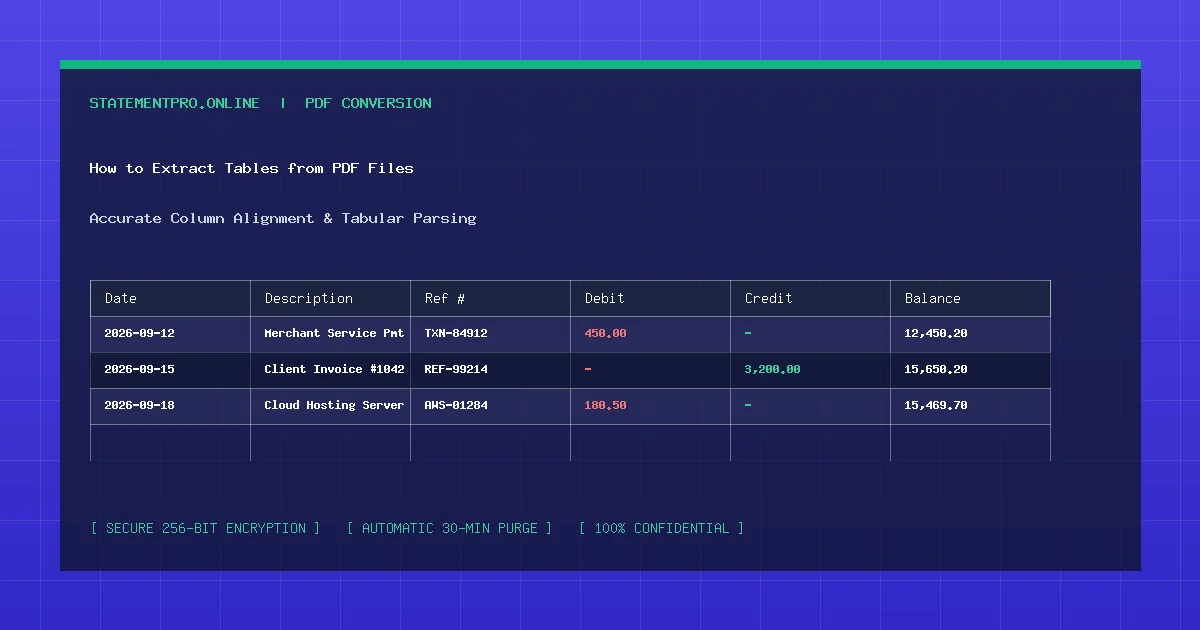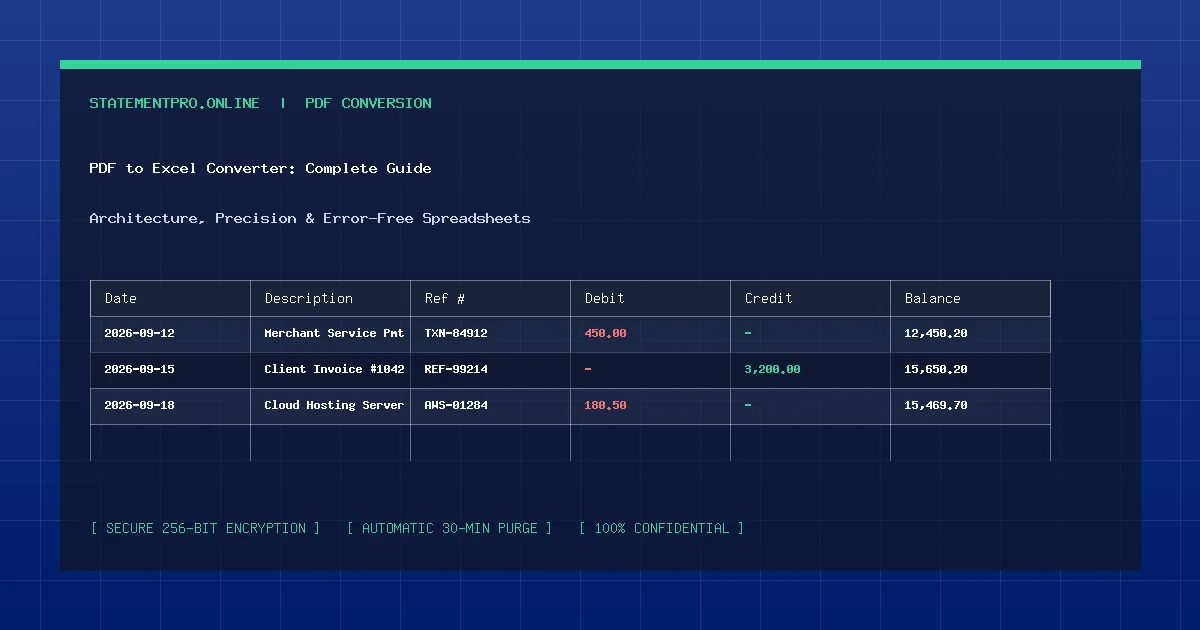
Financial institutions deliver monthly statements in Portable Document Format (PDF) because PDFs preserve strict visual typography, resist unauthorized tampering, and look identical on every screen. However, when you need to calculate monthly expenses, audit vendor disbursements, or reconcile ending cash balances, a static PDF becomes an obstacle. Manually copying transaction amounts into a spreadsheet is slow, mentally draining, and prone to costly transposition mistakes. Converting a PDF bank statement to Excel turns locked financial records into an editable workbook in seconds.
What Is PDF Bank Statement to Excel Conversion?
PDF bank statement to Excel conversion is the computational process of extracting tabular financial records—including posting dates, transaction narratives, check reference identifiers, withdrawal debits, deposit credits, and running account balances—from a fixed-layout document and structuring them into editable Microsoft Excel cells (.xlsx or XML spreadsheet format).
Unlike simple copy-and-paste commands that flatten table structures into single tangled text blocks, specialized conversion algorithms analyze vertical coordinate boundaries, delimiter spacing, and mathematical relationships between columns to recreate a clean, multi-column accounting ledger.
Why Is Converting Bank Statements to Excel Useful?
For bookkeepers, certified public accountants (CPAs), small business owners, and household budgeters, working directly in Excel delivers immediate operational benefits:
- Instant Mathematical Calculations: Use native Excel formulas such as
=SUM(),=SUMIFS(), and=SUBTOTAL()to verify whether outgoing debits and incoming credits accurately sum to the final closing ledger balance. - Effortless Vendor Filtering: Filter transactions by merchant name (e.g., utility bills, office suppliers, software subscriptions) to rapidly isolate tax-deductible operational expenditures.
- Data Portability: Import formatted spreadsheets directly into business accounting platforms like QuickBooks, Xero, Wave, or custom ERP systems.
- Historical Cash Flow Analysis: Merge multi-month bank statements into a single annual worksheet to build dynamic pivot tables and track seasonal cash flow trends.
How Does the Conversion Engine Work?
Modern bank statement parsing relies on a multi-stage extraction pipeline designed specifically for financial documents:
- Text Layer Inspection: The engine decodes the internal PDF content streams (operators such as Tj, TJ, and font glyph maps) to recover character positions and raw line text.
- Tabular Column Detection: The parser measures horizontal offsets to locate distinct column boundaries: Posting Date, Value Date, Description, Check Number, Amount, and Balance.
- Reconciliation Math Validation: Advanced parsers calculate line-by-line reconciliation. By verifying that Previous Balance minus Debit plus Credit equals Current Balance, the parser confirms whether a figure represents a withdrawal or an incoming deposit without guessing.
- Workbook Serialization: Clean data rows are packaged into an XML-based Excel workbook complete with styled table headers, auto-fitted column widths, and proper numeric cell typing.
Step-by-Step Guide: How to Convert Your Bank Statement to Excel
Follow these four simple steps to convert your document using StatementPro:
Step 1: Download Your Digital Bank Statement
Log in to your financial institution’s secure online banking portal and download the original electronic PDF statement for your desired billing cycle. Whenever possible, use native digital PDFs rather than photos taken with a mobile camera. Native PDFs contain precise digital character streams that yield 100% character accuracy.
Step 2: Upload the Statement to StatementPro
Navigate to the StatementPro PDF to Excel Converter. Drag and drop your file into the upload zone or click Choose PDF File to select the document from your local drive. Supported file sizes extend up to 15 MB and up to 100 pages per file.
Step 3: Select Excel (.xlsx) Output and Process
Ensure the format selector is set to Excel (.xlsx). Click Start Conversion. StatementPro parses the PDF document structure in your browser and on secure temporary memory, detecting transaction lines while ignoring header banners, legal disclosures, and footer page counts.
Step 4: Review Preview and Download Your Workbook
Inspect the interactive preview table directly on your screen to verify that dates, descriptions, amounts, and running balances line up properly. Click Download File to save your customized Excel spreadsheet immediately to your computer or mobile device.
Practical Example: Fictional Financial Reconciliation
To understand how extracted data appears in your spreadsheet, examine this sample excerpt from a fictional business checking statement:
| Date | Description | Reference | Debit (-) | Credit (+) | Balance |
|---|---|---|---|---|---|
| 2026-09-02 | Acme Office Supply Store #412 | CHK-1092 | $142.50 | - | $8,450.25 |
| 2026-09-05 | Client Wire Transfer - Invoice 881 | WIRE-9921 | - | $2,500.00 | $10,950.25 |
| 2026-09-08 | Apex Cloud Hosting Monthly Server | ACH-4012 | $89.00 | - | $10,861.25 |
| 2026-09-12 | Metropolitan Utility Electric Bill | EPAY-3310 | $215.40 | - | $10,645.85 |
Notice how every transaction is isolated into its own dedicated row with explicit mathematical signs, allowing you to instantly run formulas such as =SUM(D2:D5) to calculate total monthly operating expenditures ($446.90).
Common Problems Encountered During Conversion
While digital conversion is straightforward, users occasionally encounter formatting hurdles:
- Multi-Line Descriptions Splitting Across Rows: Certain banks wrap long merchant names across two or three physical lines. If an unspecialized tool parses each text line as an independent transaction, duplicate incomplete rows are created. StatementPro groups contiguous text lines under the preceding transaction anchor.
- Reversed Debit and Credit Columns: Some financial institutions report all figures in a single "Amount" column and append a trailing suffix such as "DR" or "CR". If a tool misinterprets these markers, expenses may appear as income.
- Currency Symbols Sticking to Digits: When currency characters ($ or €) remain concatenated to digits without proper spacing, Excel may treat the cell as text rather than a number, preventing mathematical summation.
Common Mistakes to Avoid
- Failing to Verify the Starting Balance: Always check that the beginning balance in row 1 of your spreadsheet matches the opening balance printed on your official statement before reconciling debits.
- Editing Converted Data Without a Backup: Always keep your original downloaded PDF file intact. Before running aggressive sorting or macros in Excel, save a pristine copy of your newly converted spreadsheet.
- Uploading Password-Protected Statements: If your bank encrypts PDF statements with your social security number or tax ID, you must unlock or enter the password before uploading to an automated converter.
Privacy and Security Protocols
Financial statements contain sensitive personal and corporate details, including account numbers, routing codes, vendor names, and personal addresses. When converting sensitive documents online, you must demand verifiable privacy protections. StatementPro employs a strict zero-retention policy:
- All transmissions are protected via end-to-end TLS encryption.
- Uploaded documents are processed exclusively in volatile temporary memory.
- Temporary files and download tokens are permanently wiped from server memory within 30 minutes.
- No financial records, personal identities, or transaction histories are ever stored in a database or shared with third parties.
Limitations of PDF to Excel Conversion
While automated conversion saves countless hours, understanding system limitations ensures smooth workflows. Automated parsers require digital text streams. If a document is a photographic scan of a crumpled paper receipt, standard text extraction cannot function without preliminary OCR. Additionally, non-standard bespoke table layouts may require minor manual column alignment after opening the file in Excel.
Frequently Asked Questions
Can I convert statements from any bank worldwide?
StatementPro works with standard digital text PDF statements issued by major banks worldwide, including Chase, Bank of America, Wells Fargo, Citibank, Barclays, HSBC, RBC, and regional credit unions.
Will the converted Excel file contain formulas?
StatementPro extracts clean numeric values so you can immediately write your own custom Excel formulas (such as SUM, AVERAGE, and VLOOKUP) without text syntax errors.
What is the maximum file size supported?
You can convert PDF bank statements up to 15 MB in size and up to 100 pages per document completely free of charge.
Related StatementPro Tools
- PDF to Excel Converter: Dedicated tool for instant PDF to Excel (.xlsx) extraction.
- PDF to CSV Converter: Export lightweight bank transaction feeds ready for accounting software imports.
- CSV to Excel Converter: Transform raw comma-separated files into beautifully formatted workbooks.
Related Guides & Tutorials
- How to Check a Converted Excel File for Errors
- How to Clean Data After PDF to Excel Conversion
- How to Convert a Bank Statement PDF to CSV
- Why PDF Tables Sometimes Convert Incorrectly
Conclusion
Converting your PDF bank statement to Excel is the single most effective way to eliminate tedious manual data entry, streamline monthly bookkeeping, and maintain pristine financial ledgers. By using an intelligent, privacy-first converter like StatementPro, you can extract thousands of transaction rows in seconds, verify ledger accuracy, and focus your valuable time on high-level financial analysis.