In the modern digital workplace, financial analysts, operations managers, and accountants handle thousands of PDF files every month. While PDFs remain the gold standard for secure, tamper-evident document distribution, they are fundamentally unsuited for quantitative modeling, mathematical auditing, or iterative calculation. A high-performance PDF to Excel converter solves this fundamental friction by translating fixed-layout document streams into dynamic, formula-ready Microsoft Excel workbooks. This comprehensive guide explores converter architecture, comparative workflows, and best practices for maximum extraction fidelity.
What Is a PDF to Excel Converter?
A PDF to Excel converter is a specialized software application that analyzes the internal binary architecture of a Portable Document Format file, identifies tabular and textual data structures, and serializes the information into native Microsoft Excel file formats, such as Office Open XML (.xlsx) or XML Spreadsheet specifications.
Unlike basic Optical Character Recognition (OCR) tools that simply transcribe letters onto a flat page, an advanced PDF to Excel converter understands spatial layout geometry, header-data hierarchies, currency symbols, and numeric formatting.
Why Is a Dedicated PDF to Excel Converter Indispensable?
Relying on manual re-entry or rudimentary copy-paste techniques carries steep operational costs:
- Dramatic Productivity Acceleration: Converting a 50-page financial report by hand can require 8 to 10 hours of intense typing. An automated converter processes the same document in less than 5 seconds.
- Elimination of Data Transposition Errors: Studies show that human data entry carries an average error rate of 1% to 3%. In financial statements, a transposed digit can produce catastrophic auditing errors.
- Preservation of Relational Geometry: Sophisticated converters keep data aligned with its corresponding column header, ensuring that reference numbers never contaminate transaction amounts.
- Instant Audit Readiness: Converted workbooks can be immediately analyzed using conditional formatting, lookup functions (VLOOKUP, XLOOKUP), and pivot tables.
How Does a High-Performance PDF to Excel Converter Function?
To produce clean, error-free spreadsheets, modern conversion software executes an intricate five-stage technical pipeline:
- Decompression and Stream Parsing: The converter de-flates internal compressed object streams (FlateDecode) to access raw text instructions and font matrices.
- Coordinate Mapping: Each character string is mapped onto a 2D Cartesian grid based on its X and Y coordinates. The engine computes line heights, baseline offsets, and inter-word gutters.
- Header and Row Clustering: By scanning for horizontal separator lines or vertical alignment channels, the parser establishes table boundaries and distinguishes column headers from data records.
- Type Coercion and Data Normalization: Strings resembling dates or monetary values are transformed into true numeric datatypes, stripping unwanted currency glyphs while retaining negative sign values.
- XML Spreadsheet Serialization: The extracted multidimensional array is compiled into an official Excel XML workbook, assigning proper styles, column widths, and cell types.
Step-by-Step Guide: How to Use StatementPro’s Converter
StatementPro provides a frictionless, zero-install converter accessible from any modern web browser:
Step 1: Prepare Your Document
Ensure your PDF file is not password-protected and contains native text characters. If your document was created via an electronic export from software like QuickBooks, SAP, or online banking portals, it is perfectly optimized for immediate conversion.
Step 2: Upload to StatementPro
Open the StatementPro PDF to Excel Converter. Drag and drop your file into the uploader or select it via your system file dialog.
Step 3: Confirm Output Format
Select Excel (.xlsx) as your desired output. Click the Start Conversion button to initiate the extraction pipeline.
Step 4: Preview and Download
Review the on-screen interactive preview grid to confirm that debit, credit, date, and description columns are accurately positioned. Click Download File to save your customized Excel workbook.
Practical Example: Fictional Financial Data Conversion
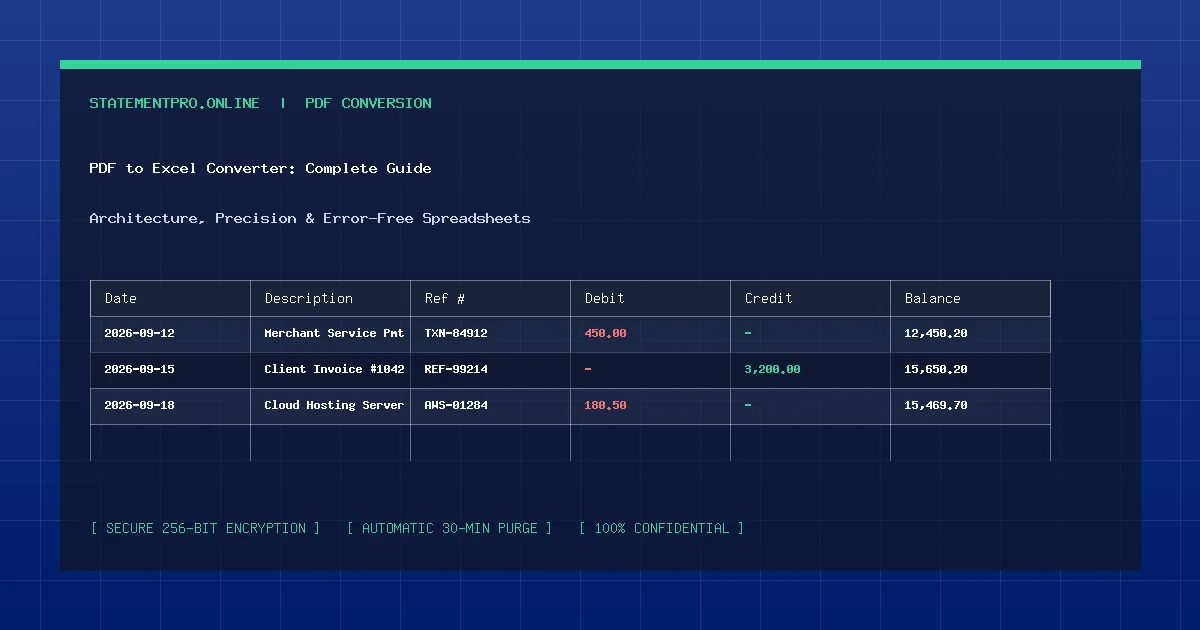
Examine how a raw PDF line is transformed into structured spreadsheet cells:
Raw PDF Text Stream:
2026-08-14 Amazon Web Services Server Hosting REF-88910 $1,240.50 $14,890.20
Structured Excel Output Table:
| Date | Description | Reference | Debit | Credit | Balance |
|---|---|---|---|---|---|
| 2026-08-14 | Amazon Web Services Server Hosting | REF-88910 | $1,240.50 | - | $14,890.20 |
The parser correctly separates the text into distinct semantic fields, recognizing that the first numeric value is a debit expenditure while the second represents the running ledger balance.
Common Problems in PDF to Excel Conversions
- Text Treated as Images: If a PDF was scanned from a paper document without OCR, the file contains flat pixel images rather than readable text. Standard text parsers will report zero extractable transactions.
- Inconsistent Decimal Separators: In European financial documents, periods denote thousand separators and commas denote decimal points (e.g.,
1.250,50 €). If not accounted for, converters may misinterpret figures by a factor of 100. - Merged Multi-Row Header Bands: Reports with tiered headers can cause subsequent column data to shift left or right if the parser fails to recognize header spans.
Common Mistakes to Avoid
- Relying on Software That Requires Email Registration: Many online tools demand your corporate email before granting download links, resulting in marketing spam and potential data exposure. StatementPro operates entirely anonymously.
- Failing to Audit Calculated Totals: Always compare the sum of your converted debit and credit columns against the official statement summary before closing month-end books.
- Converting Without Verifying File Encryption: Attempting to upload an encrypted PDF will cause processing errors. Always unlock encrypted files prior to conversion.
Privacy, Confidentiality, and Compliance
Financial documents contain highly restricted proprietary data. StatementPro adheres to strict privacy and cybersecurity standards:
- Enterprise TLS 1.3 encryption across all network transfers.
- In-memory processing architecture with automated 30-minute file purges.
- Zero long-term data retention or database logging of financial figures.
- No third-party data tracking, advertising cookies, or unauthorized document sharing.
Limitations of PDF to Excel Software
While modern converters achieve remarkable accuracy on standard business layouts, they cannot miraculously reconstruct degraded handwriting, severely rotated scans, or proprietary password-scrambled text layers without prior optical correction.
Frequently Asked Questions
Will the converted spreadsheet open in Google Sheets and Apple Numbers?
Yes. StatementPro produces standardized Excel XML workbooks that open seamlessly in Microsoft Excel, Google Sheets, Apple Numbers, and LibreOffice Calc.
How many pages can I convert at one time?
StatementPro comfortably processes documents containing up to 100 pages per conversion session, making it ideal for lengthy annual bank statements.
Is StatementPro completely free to use?
Yes. StatementPro is completely free for supported file sizes without hidden subscription fees, watermarks, or page conversion limits.
Related StatementPro Tools
- PDF to Excel Converter: Dedicated portal for converting PDF documents into formatted Excel workbooks.
- PDF to CSV Converter: High-speed extractor for generating clean CSV accounting feeds.
- Excel to CSV Converter: Strip formatting from existing spreadsheets to produce lightweight CSVs.
Related Guides & Tutorials
- How to Convert a PDF Bank Statement to Excel
- How to Clean Data After PDF to Excel Conversion
- How to Check a Converted Excel File for Errors
- Why PDF Tables Sometimes Convert Incorrectly
Conclusion
Choosing the right PDF to Excel converter is essential for optimizing financial workflows, protecting sensitive data, and eliminating hours of mindless data entry. With its instant browser-based processing, robust table extraction engine, and uncompromising privacy standards, StatementPro provides the ultimate solution for professional document conversion.