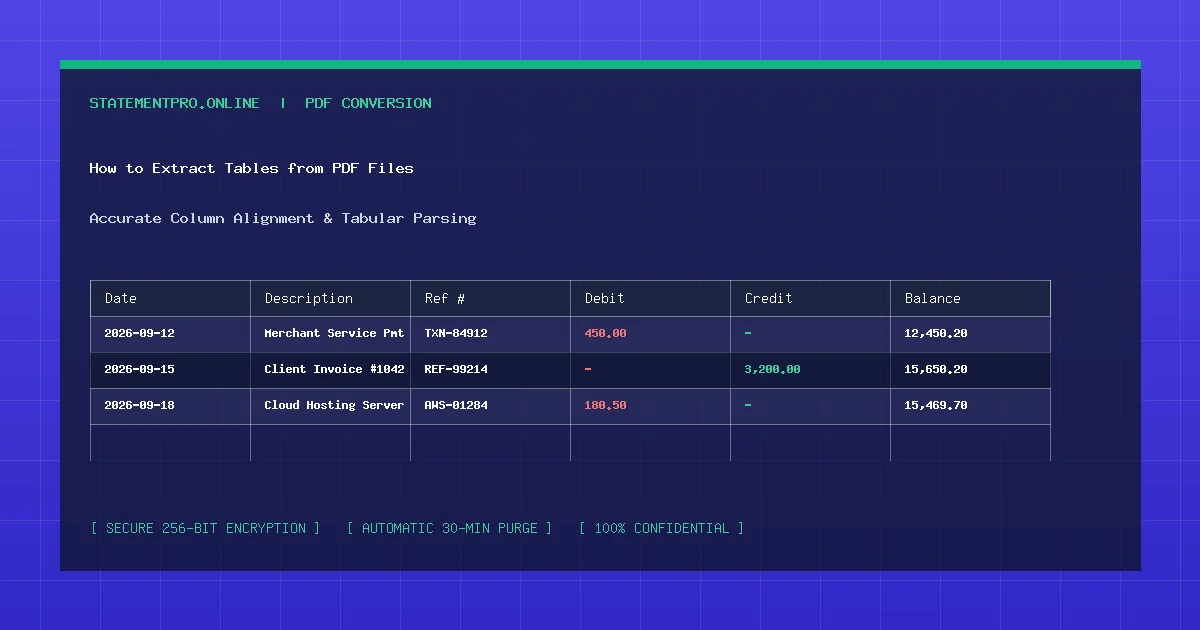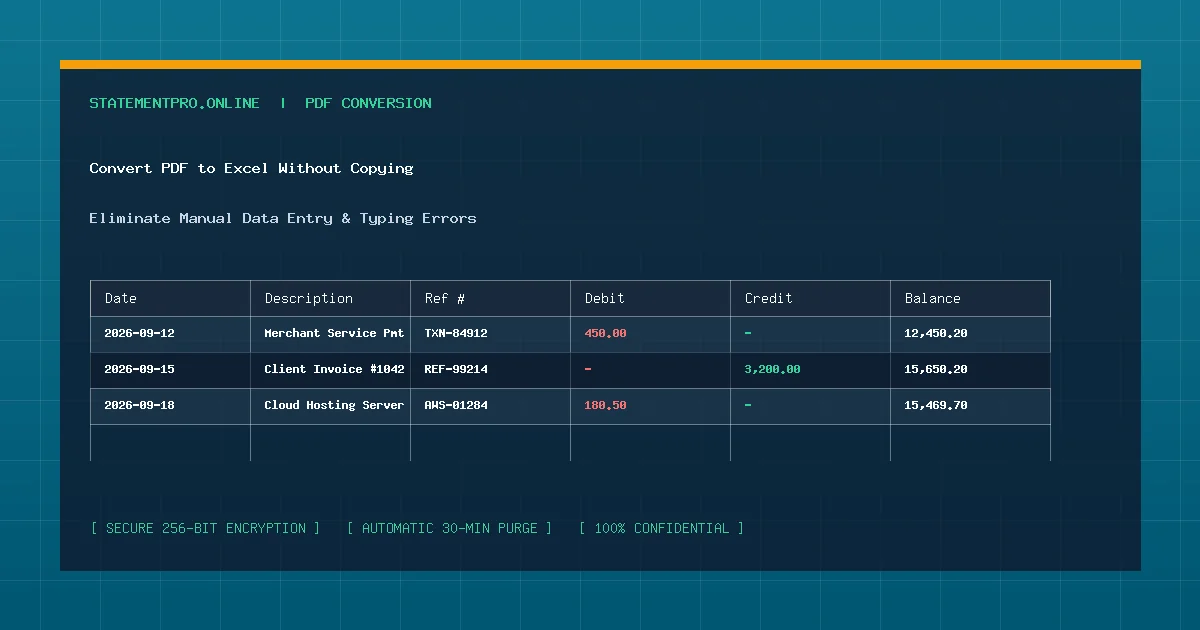
Almost everyone who works with business documents has experienced the frustration of attempting to copy a table from a PDF and paste it into Microsoft Excel. Inevitably, the pasted text clumps into a single messy column, lines wrap erratically, dates merge with merchant names, and hours are spent manually splitting cells and re-typing numbers. Learning how to convert PDF to Excel using automated extraction eliminates this tedious manual typing, saves countless hours of labor, and guarantees mathematical accuracy.
Why Manual Copying and Pasting Fails
To understand why manual copying is so inefficient, consider how operating systems handle clipboard data. When you highlight text in a PDF viewer and press Ctrl+C (or Cmd+C), the operating system captures raw text strings separated only by standard whitespace or line feed characters. The visual coordinate boundaries that define table columns are completely discarded.
When you paste that clipboard buffer into Excel with Ctrl+V, the spreadsheet application has no way of knowing where column B ends and column C begins. As a result, entire rows collapse into column A, forcing you to manually re-enter data line by line.
What Is Automated PDF to Excel Conversion?
Automated conversion utilizes specialized document parsing engines that analyze the visual layout of the PDF document. Rather than relying on simple text copying, automated converters evaluate the Cartesian coordinates of every word, detect horizontal and vertical whitespace gutters, isolate numeric columns, and reconstruct the exact multi-column table directly into native Excel cells (.xlsx).
Why Is Automated Conversion Essential for Businesses?
- Dramatically Lowers Labor Overhead: A bookkeeper tasked with manually re-entering 20 pages of bank transactions may spend 4 hours of billable time. An automated tool accomplishes the same task in under 10 seconds.
- Zero Typographical and Transposition Errors: Manual typing routinely results in transposed digits (such as typing $482.00 instead of $428.00). In corporate bookkeeping or tax preparation, even minor errors can derail financial audits.
- Maintains Data Consistency: Automated parsers ensure uniform date formatting (e.g.,
YYYY-MM-DD) and standardize negative financial amounts across thousands of transaction rows. - Scales Effortlessly: Whether you are converting a single one-page invoice or a 50-page annual account statement, automated pipelines handle high volumes without operator fatigue.
How Automated Extraction Works Under the Hood
Automated converters like StatementPro employ a multi-layered extraction architecture:
- Stream Decoding: The engine decompresses the PDF byte stream to read character mappings and positioning matrices directly from the document code.
- Boundary Identification: Vertical whitespace channels are analyzed across the entire page height to establish clear column boundaries (Date, Payee, Check Number, Debit, Credit, Balance).
- Row Clustering: Text elements sharing identical or proximate vertical baselines are grouped into distinct transaction rows.
- Numeric Typing: The parser cleans currency marks, formats numerical values, and serializes the clean table into an open XML Excel workbook.
Step-by-Step Guide: Converting PDF to Excel Without Typing
Follow these four simple steps to extract your document data automatically:
Step 1: Download Your Original Electronic Document
Obtain your PDF file directly from the source—such as your online bank portal, vendor invoicing system, or ERP export. Digital text PDFs produce 100% accurate extraction results.
Step 2: Upload to StatementPro
Visit the StatementPro PDF to Excel Converter. Drag and drop your PDF into the uploader box. No software installation or user account creation is required.
Step 3: Initiate Conversion
Select Excel (.xlsx) as your desired output format and click Start Conversion. StatementPro parses the entire document structure in seconds.
Step 4: Download Your Formatted Spreadsheet
Review the on-screen preview table to verify column alignment, then click Download File. Open your newly created workbook in Excel, Google Sheets, or Apple Numbers ready for immediate analysis.
Practical Example: Fictional Automated Extraction
Consider this sample transaction excerpt processed automatically without a single keystroke:
| Date | Payee / Narrative | Check Ref | Debit | Credit | Running Balance |
|---|---|---|---|---|---|
| 2026-09-04 | Starlight Telecom Internet Bill | TEL-4091 | $129.99 | - | $12,450.00 |
| 2026-09-08 | Wholesale Packaging Supplies | CHK-8812 | $640.50 | - | $11,809.50 |
| 2026-09-12 | Merchant Payment Settlement | DEP-9901 | - | $3,450.00 | $15,259.50 |
| 2026-09-15 | State Department of Revenue Tax | TAX-1022 | $450.00 | - | $14,809.50 |
Every single transaction sits in its own dedicated row with debit and credit amounts separated into distinct mathematical columns ready for automatic summation.
Common Problems Encountered When Automating Conversion
- Scanned Image Documents: If a document was photocopied or photographed, text streams do not exist. In such cases, Optical Character Recognition (OCR) must be applied to recognize letter shapes before table extraction can occur.
- Multi-Line Descriptions: Certain merchants generate lengthy descriptions that span across two lines. StatementPro’s contextual parser attaches the second line to the primary transaction rather than creating an orphan row.
- Non-Standard Currency Notations: Documents utilizing trailing minus signs or European decimal commas require intelligent parsing to prevent Excel from interpreting figures as plain text.
Common Mistakes to Avoid
- Using Generic Online Copy Tools: Many unspecialized converters treat financial statements like ordinary text articles, dumping dates and balances into arbitrary cells. Always choose a converter designed specifically for tabular and financial records.
- Failing to Keep the Original PDF: Always preserve your master source PDF in a secure archive for audit trails and regulatory compliance.
- Overlooking Encrypted Files: Ensure password locks are removed before uploading documents to automated web tools.
Privacy and Data Security Protocols
Security is paramount when converting sensitive commercial records. StatementPro protects your confidential files through enterprise-grade protocols:
- All data is transmitted across secure TLS 1.3 encrypted channels.
- Processing occurs entirely in volatile RAM buffers.
- Uploaded PDFs and generated spreadsheets are permanently erased within 30 minutes.
- No customer data, financial records, or IP logs are permanently stored or shared.
Limitations of Automated Conversion
Automated conversion tools require well-formed source documents. Severely crumpled paper receipts, skewed scans, or handwritten logs cannot be reliably extracted without manual optical verification.
Frequently Asked Questions
Can I convert PDF to Excel on Mac, Windows, and Linux?
Yes. StatementPro operates directly inside any modern web browser (Chrome, Edge, Safari, Firefox), making it completely platform-agnostic across Mac, Windows, Linux, iOS, and Android.
Do I need to install any software or browser plugins?
No. StatementPro requires zero software downloads, plugins, or extensions. All processing happens seamlessly in your browser.
Can I convert multiple months of statements at once?
Yes. You can convert statements containing up to 100 pages per file, allowing you to convert quarterly or annual statements in a single batch.
Related StatementPro Tools
- PDF to Excel Converter: Extract structured tables into clean Excel (.xlsx) files.
- PDF to CSV Converter: Export lightweight CSV data feeds for accounting software.
- CSV to Excel Converter: Turn comma-separated data into beautifully styled workbooks.
Related Guides & Tutorials
- How to Convert a PDF Bank Statement to Excel
- How to Extract Tables from PDF Files
- How to Clean Data After PDF to Excel Conversion
- How to Check a Converted Excel File for Errors
Conclusion
Attempting to convert PDF to Excel by manually copying and pasting data is a recipe for frustration and costly mistakes. By embracing automated tools like StatementPro, you can extract thousands of financial and tabular data rows in seconds, maintain pristine ledger integrity, and reclaim valuable business hours.