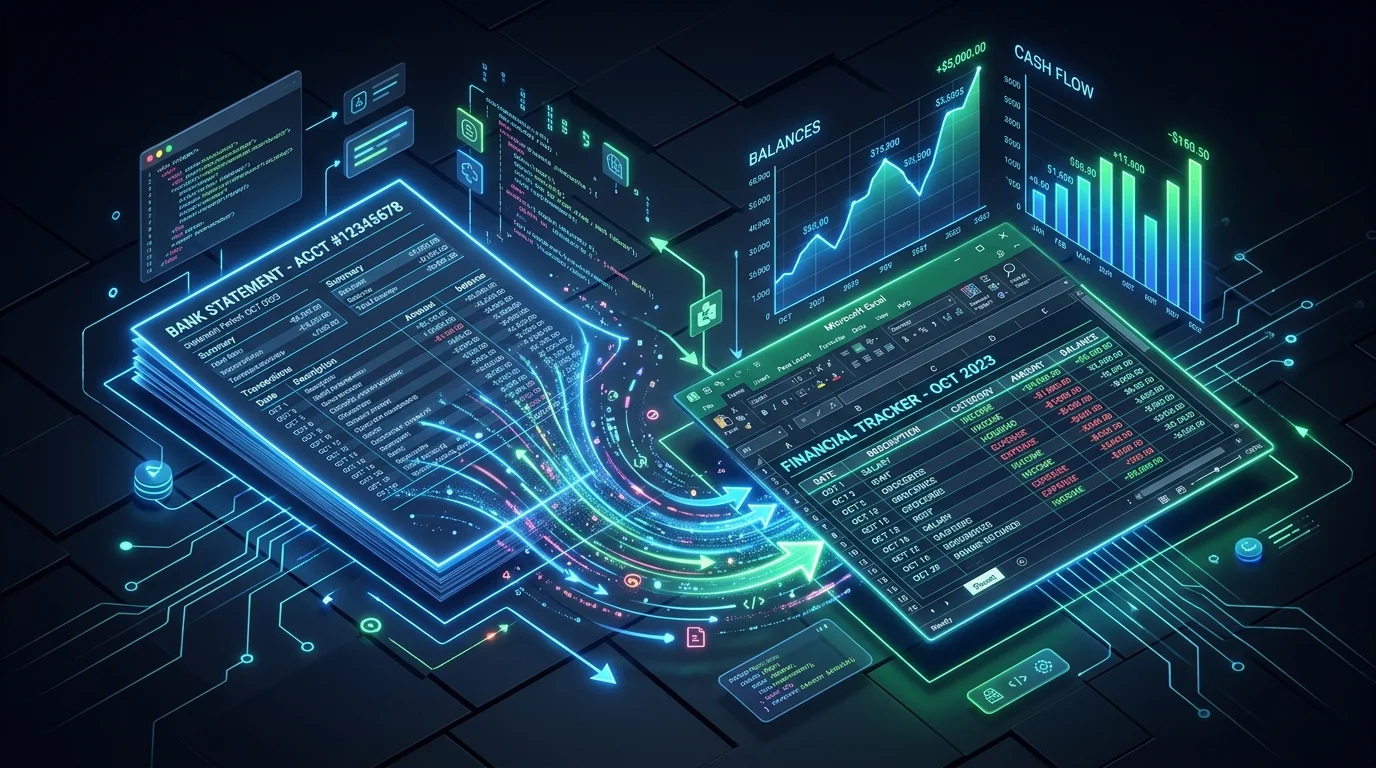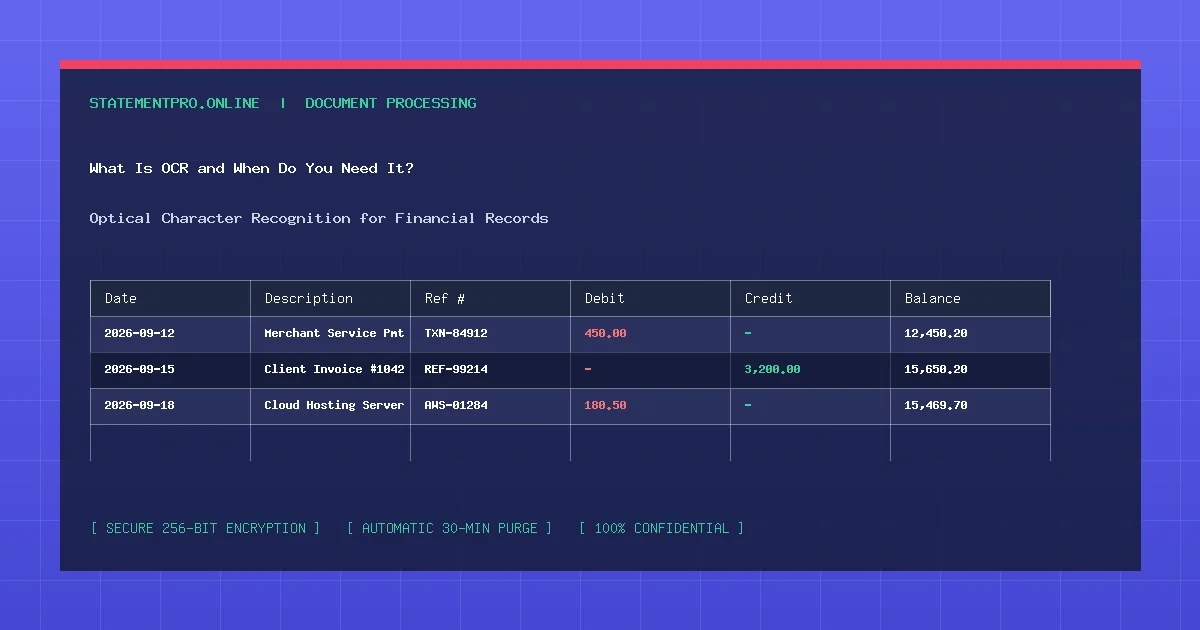
In an increasingly automated business environment, organizations process millions of digital documents every day. Yet, legacy paper archives, signed contracts, physical vendor receipts, and faxed bank statements remain pervasive. When these physical records are digitized using photocopiers or scanners, they are saved as static images wrapped inside PDF files. To extract numbers, sort transaction ledgers, or search for customer names, computers require a specialized technology: Optical Character Recognition (OCR). Understanding OCR for PDF documents is essential for converting locked image archives into editable financial spreadsheets.
What Is OCR (Optical Character Recognition)?
Optical Character Recognition (OCR) is a computer vision and pattern recognition technology that converts different types of documents—such as scanned paper records, PDF camera captures, or raster images—into editable, machine-readable, and searchable digital text data.
When a paper document is scanned, the scanner creates a flat bitmap image consisting of millions of microscopic color or grayscale pixels. The computer has no inherent awareness of letters, words, or numbers. OCR software inspects those pixel patterns, compares them against known typographic matrices, and converts the visual shapes into standardized Unicode character codes (e.g., transforming a cluster of dark pixels into the letter "A" or the numeral "7").
How Does OCR Technology Work Under the Hood?
Modern OCR software employs advanced artificial intelligence, neural networks, and geometric image processing. The OCR pipeline executes through four primary stages:
- Image Pre-Processing & Binarization: Before reading text, the engine cleans the scan. It converts color images to high-contrast black-and-white (binarization), removes background speckles (despeckling), and rotates tilted pages so text lines lie perfectly horizontal (deskewing).
- Layout Analysis (Zoning): The algorithm segments the page into distinct functional zones: identifying blocks of narrative text, photograph graphics, titles, and multi-column tabular data grids.
- Character Recognition (Matrix Matching & Feature Extraction): The core recognition engine breaks text into individual character glyphs. Deep neural networks analyze topological features—such as closed loops, horizontal crossbars, vertical stems, and aspect ratios—to identify the exact character.
- Post-Processing & Lexical Correction: The engine applies language dictionaries and contextual heuristics to resolve ambiguities (e.g., distinguishing between the numeral
0and the capital letterObased on neighboring letters).
When Do You Actually Need OCR for PDFs?
Not every PDF document requires OCR. In fact, applying OCR to files that do not need it introduces unnecessary delays. Here is how to determine when OCR is mandatory:
Scenarios Where OCR IS Required:
- Scanned Paper Documents: Physical paper bank statements, utility receipts, or shipping manifests fed through an office flatbed scanner.
- Smartphone Photos: Mobile camera snapshots of receipts, whiteboard meetings, or paper contracts saved as PDF files.
- Raster Graphic Exports: Digital graphics created in image editors (such as Photoshop) and exported as PDFs without digital font layers.
- Flattened Historical Archives: Microfiche archives, historical public records, and legacy legal filings digitized before modern electronic publishing.
Scenarios Where OCR IS NOT Needed:
- Native Online Banking PDFs: Statements downloaded directly from portals such as Chase, Wells Fargo, Bank of America, or Citibank. These contain native vector text.
- Software Invoices: Electronic invoices generated by QuickBooks, Xero, Stripe, or billing systems.
- Documents Created in Word or Google Docs: Files exported directly using "Save As PDF."
Step-by-Step Guide: How to Use OCR to Convert PDFs
Follow these four simple steps to convert a scanned document using StatementPro:
Step 1: Test Your PDF for Existing Text Layers
Open the PDF document in your web browser. Attempt to highlight a sentence with your mouse. If the cursor selects words cleanly, your document contains digital text—proceed directly to standard conversion. If you cannot select text, the document is an image scan requiring OCR.
Step 2: Ensure Optimal Document Scanning
If you are digitizing physical documents yourself, set your scanner resolution to 300 DPI in grayscale or black-and-white mode. Ensure the paper is aligned straight against the glass to avoid diagonal text distortion.
Step 3: Upload the File to StatementPro
Navigate to the StatementPro PDF to Excel Converter. Drag and drop your scanned PDF into the upload container. StatementPro’s automated document analyzer detects image layers and engages its OCR engine automatically.
Step 4: Download and Audit the Extracted Spreadsheet
Once OCR processing is complete, download your Microsoft Excel (.xlsx) or CSV file. Run a quick formula check (e.g., =SUM()) on monetary columns to ensure all recognized numbers reconcile with the original scan.
Practical Example: Fictional Freight Invoice OCR
Consider a scanned paper freight bill with three line items processed through an OCR extraction engine:
OCR-Reconstructed Ledger:
| Tracking_ID | Origin | Destination | Weight_LBS | Freight_Charge |
|---|---|---|---|---|
| TRK-90412 | Chicago, IL | Atlanta, GA | 1,450 | $840.00 |
| TRK-90413 | Dallas, TX | Phoenix, AZ | 2,100 | $1,190.50 |
| TRK-90414 | Seattle, WA | Denver, CO | 890 | $620.00 |
Notice that the OCR engine successfully distinguished between the uppercase letters in TRK, the hyphens, and the numeric tracking codes, while preserving currency formatting on the charges ($2,650.50 total).
Common Problems Encountered with OCR
- Character Substitution Errors: Low-contrast scans can cause OCR models to confuse
1(one),l(lowercase L), andI(uppercase i), or replace8withB. - Lost Table Alignments: If a scanned document is skewed by more than 2 degrees, horizontal text lines will angle across row boundaries, causing columns to shift.
- Faded Ink & Carbon Copies: Faint dot-matrix printouts or faded receipts often fail contrast thresholds, leading to missing digits.
Common Mistakes to Avoid
- Running OCR on Native Vector PDFs: Applying OCR to a clean digital PDF can introduce character misinterpretations into an otherwise pristine digital document.
- Using Low-Resolution Scans (72 or 150 DPI): Low resolution blurs fine letter shapes. Always scan financial documents at 300 DPI.
- Failing to Audit Decimal Points: Dust specks on scanner glass can be misread by OCR software as decimal points (e.g., reading
$1000as$10.00). Always cross-reference totals.
Privacy and Data Security Protocols
Scanned documents frequently contain confidential medical records, payroll information, or proprietary financial accounts. StatementPro protects document privacy at every touchpoint:
- All transmissions are protected with enterprise-grade TLS 1.3 encryption.
- Processing occurs strictly within volatile RAM buffers.
- All uploaded scans and extracted output files are permanently deleted within 30 minutes.
- Zero data is stored in databases, cataloged, or used to train public machine learning models.
Limitations of OCR Technology
OCR algorithms are engineered for machine-printed text fonts (such as Arial, Times New Roman, and Helvetica). Documents containing handwritten signatures, messy pen annotations, heavy creases, or water-damaged paper cannot be converted with 100% automated reliability and require manual human validation.
Frequently Asked Questions
How long does OCR take compared to regular PDF conversion?
While native digital PDF conversion takes 2 to 5 seconds, OCR requires intensive computer vision analysis, typically taking between 10 to 30 seconds per document depending on page count.
Can OCR convert multi-language documents?
Yes. Modern OCR systems support over 100 languages, including Latin, Cyrillic, Greek, Arabic, and Asian scripts, correctly identifying accents, umlauts, and character diacritics.
Is StatementPro OCR free to use?
Yes. StatementPro provides high-speed automated document parsing and table extraction for standard business files without requiring subscription plans.
Related StatementPro Tools
- PDF to Excel Converter: Extract scanned and digital PDF records into structured Microsoft Excel workbooks.
- PDF to CSV Converter: Export clean accounting feeds ready for financial software import.
- CSV to Excel Converter: Convert raw comma-delimited data files into styled spreadsheets.
Related Guides & Tutorials
- How to Convert Scanned PDFs to Editable Data
- Text PDF vs Scanned PDF: What Is the Difference?
- How to Extract Data from a PDF
- How to Check a Converted Excel File for Errors
Conclusion
OCR for PDF documents is an indispensable bridge connecting physical paper records to dynamic spreadsheet environments. By understanding how OCR works, adhering to 300 DPI scanning standards, and validating converted numbers, you can unlock valuable financial data locked inside static paper archives with complete confidence.