When working with business documents, accounting ledgers, and legal filings, you likely interact with dozens of PDF files every week. However, many users do not realize that the term "PDF" encompasses two fundamentally different document architectures: native text PDFs and scanned image PDFs. While both appear virtually identical on a computer screen, they behave very differently when you attempt to search, copy, or convert data into a spreadsheet. Understanding the distinction between a text PDF vs scanned PDF is crucial for ensuring fast, error-free document processing.
What Is a Native Text PDF?
A native text PDF (often referred to as a "true" digital PDF) is an electronic document generated directly by software applications such as Microsoft Word, Microsoft Excel, Google Docs, enterprise ERP systems, or online banking engines. When you click "Save as PDF" or "Export to PDF," the software compiles the document using native vector instructions.
Inside a text PDF, every letter, number, and punctuation mark is preserved as a distinct digital character glyph associated with a specific font encoding (such as Unicode or Latin-1). The file also retains precise mathematical coordinates for text positioning, vector rules for border lines, and embedded metadata.
What Is a Scanned Image PDF?
A scanned PDF is essentially a digital photograph wrapped inside a PDF container. It is created when a physical paper document is passed through an office flatbed scanner, a multi-function photocopier, or captured with a mobile smartphone camera.
In a raw scanned PDF, there is zero selectable text. The document consists entirely of a raster pixel grid (a matrix of dots, typically at resolutions of 150 to 300 DPI). To a computer, a scanned bank statement looks no different than a JPEG photograph of a landscape. There are no letters, numbers, or column structures encoded in the underlying byte stream.
Key Architectural Differences: Text PDF vs Scanned PDF
| Feature / Attribute | Native Text PDF | Scanned Image PDF |
|---|---|---|
| Source Origin | Generated directly by digital software applications | Physical paper digitized via optical scanner or camera |
| Internal Data Structure | Digital character glyphs, vector lines, font maps | Raster bitmap pixels (JPEG / TIFF / PNG compressed) |
| Text Selectability | Instant cursor selection, search, and copy-paste | Cannot highlight or search text without OCR |
| Conversion Speed | Near-instant (under 5 seconds for multi-page files) | Requires compute-heavy OCR parsing (15-60 seconds) |
| Data Extraction Accuracy | 100% character precision (machine-encoded) | 95% - 99% depending on scan clarity and resolution |
| File Size Efficiency | Highly compact (typically 50 KB – 500 KB) | Large file footprints (frequently 2 MB – 20 MB+) |
How Conversion Engines Handle Both PDF Types
Because the underlying technical structures are completely dissimilar, document converters must execute distinct computational workflows:
1. Processing Native Text PDFs
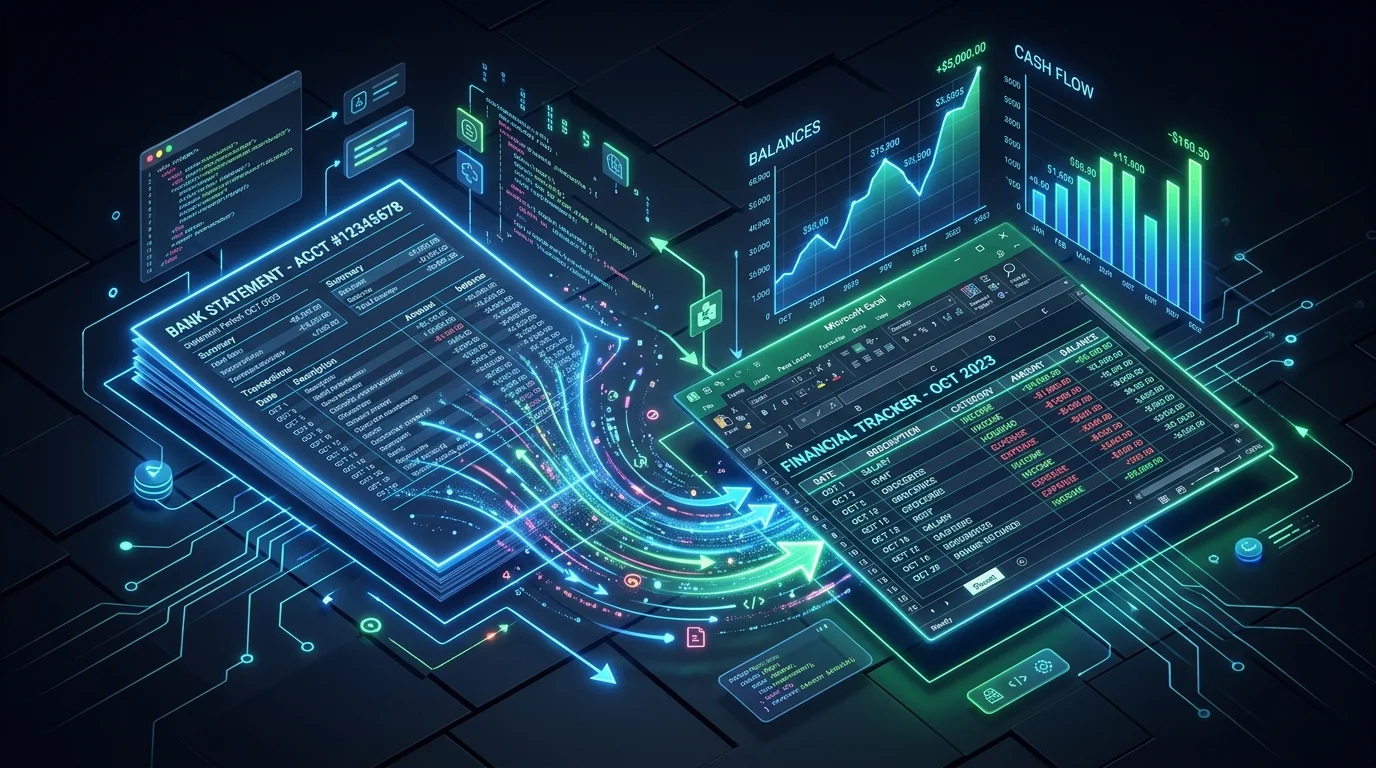
When you feed a native text PDF into StatementPro, the engine bypasses visual recognition entirely. It reads the raw character streams, measures spatial offsets between words, reconstructs tabular rows, validates column alignments, and writes the figures into an Excel spreadsheet in seconds.
2. Processing Scanned Image PDFs via OCR
When an engine encounters a scanned PDF, it must deploy Optical Character Recognition (OCR). The OCR pipeline executes four intensive sub-routines:
- Image Preprocessing: The image is converted to grayscale, contrast is enhanced (binarization), and rotational skew is corrected (deskewing).
- Feature Extraction: Computer vision algorithms detect geometric patterns such as loops, stems, curves, and line intersections.
- Pattern Matching: Neural network models compare detected shapes against known typographic character matrices to predict letter identities.
- Coordinate Mapping: Recognized words are assigned 2D canvas coordinates so layout reconstruction algorithms can build spreadsheet columns.
Step-by-Step Guide: How to Convert Both PDF Types
Regardless of which format your document uses, follow these four steps to convert it cleanly into structured data:
Step 1: Test for Selectable Text
Open your file in any browser or PDF reader. Press Ctrl + F (or Cmd + F on macOS) and search for a number or word visible on the page. If the search locates the text immediately, you have a native digital PDF. If no matches are found, your document is a scan.
Step 2: Optimize Image Quality (For Scanned PDFs Only)
If converting a paper scan, verify that the document resolution is at least 300 DPI and that the document was scanned flat without curled edges or dark photocopy shadows.
Step 3: Upload to StatementPro
Navigate to the StatementPro PDF to Excel Converter. Drag and drop your file into the conversion interface. StatementPro automatically identifies whether the file is native vector text or requires OCR processing.
Step 4: Download and Verify Extracted Records
Download your converted Microsoft Excel or CSV spreadsheet. For native text PDFs, character accuracy is guaranteed. For scanned PDFs, verify numeric columns against master totals to catch any OCR character misinterpretations.
Practical Example: Fictional Accounting Ledger Comparison
Consider how both formats handle a commercial invoice with order line items:
Extracted Spreadsheet Record:
| Item_Code | Description | Qty | Unit_Price | Total |
|---|---|---|---|---|
| SKU-49102 | Galvanized Steel Brackets | 250 | $4.20 | $1,050.00 |
| SKU-49108 | Stainless Fastener Assemblies | 100 | $12.50 | $1,250.00 |
With a native text PDF, the zero in SKU-49102 is read directly from font character byte codes. In a poor 150 DPI scan, an uncalibrated OCR tool might misinterpret the zero as the capital letter O (e.g., SKU-491O2). Recognizing this vulnerability allows accounting teams to verify critical SKU codes.
Common Problems Encountered with Scanned PDFs
- Resolution Artifacts: Scans under 200 DPI blur fine text serifs, leading OCR algorithms to confuse numerals like
8and3, or5and6. - Skew and Rotation: Physical pages placed crookedly on scanner glass cause text lines to drift diagonally, breaking row alignment.
- Background Noise: Creases, staples, watermarks, and hole-punches can be misinterpreted by OCR software as stray punctuation marks.
Common Mistakes to Avoid
- Converting Mobile Camera Snapshots Directly: Taking a photo of a document with a phone creates barrel distortion and uneven lighting. Always use a document scanner app that flattens perspective.
- Re-Scanning Digital PDFs: Printing a digital PDF only to scan it back into a computer degrades data fidelity pointlessly. Always use the original electronic PDF file.
- Skipping Numeric Reconciliation: Always calculate
SUM()across converted ledger columns to confirm that mathematical totals match the paper invoice.
Privacy and Security Considerations
Whether you upload digital text or scanned records, financial files demand uncompromising security. StatementPro ensures complete data isolation:
- Transport Layer Security (TLS 1.3) protects all file transfers.
- Files are processed exclusively in ephemeral memory with zero long-term storage.
- Automated scheduled cleanup routines permanently erase uploaded files within 30 minutes.
- No documents are retained, parsed for analytics, or shared with third parties.
Limitations of Both Methods
Native text PDFs cannot recover data if the original document author created the table using irregular tab stops rather than true table borders. For scanned PDFs, documents with heavy coffee stains, torn edges, or handwritten cursive script cannot be parsed reliably by automated machine tools.
Frequently Asked Questions
Can I convert a scanned PDF back into a searchable PDF?
Yes. OCR tools can generate a "sandwich PDF" where an invisible layer of selectable digital text is embedded directly beneath the original scanned image.
Why is native digital PDF always preferred over paper scans?
Native digital PDFs offer 100% character accuracy, instantaneous conversion speed, smaller file sizes, and perfect preservation of numeric decimal places without OCR guesswork.
Can StatementPro convert multi-page bank statements from both formats?
Yes. StatementPro processes documents up to 100 pages per file, effortlessly handling digital statements as well as high-resolution scans.
Related StatementPro Tools
- PDF to Excel Converter: High-speed conversion of digital and scanned PDF bank statements into structured workbooks.
- PDF to CSV Converter: Transform complex tables into lightweight comma-separated data feeds.
- CSV to Excel Converter: Format, organize, and style raw delimiter feeds into presentation spreadsheets.
Related Guides & Tutorials
- What Is OCR and When Do You Need It for PDFs?
- How to Convert Scanned PDFs to Editable Data
- How to Extract Data from a PDF
- Why PDF Tables Sometimes Convert Incorrectly
Conclusion
Recognizing the difference between a text PDF vs scanned PDF empowers you to choose the most efficient conversion strategy for your workflow. By utilizing native digital PDFs whenever possible and leveraging robust OCR tools when handling physical archives, you can reliably convert any document into clean, actionable spreadsheet data.