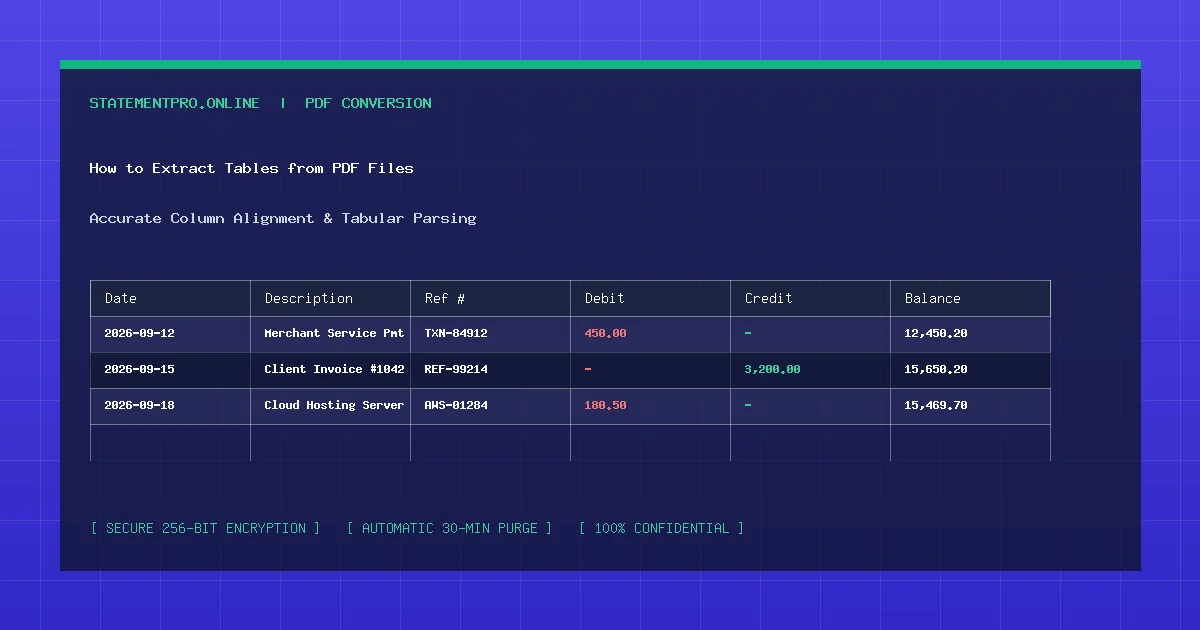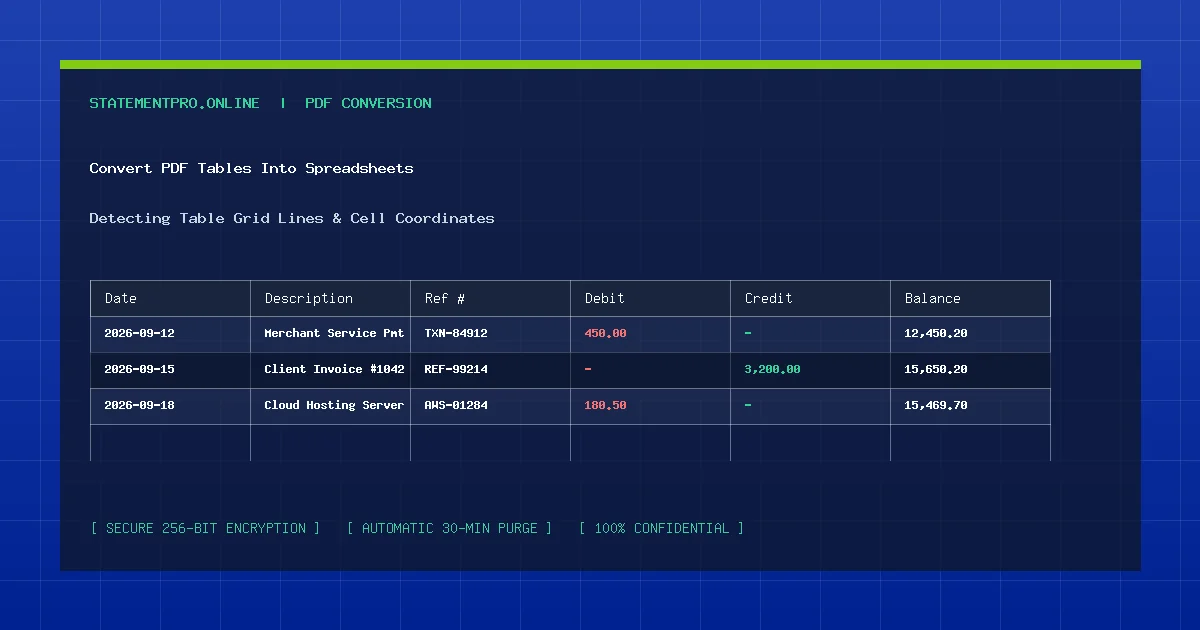
From financial quarterly statements and scientific research reports to government census publications and supply chain price sheets, tabular data is the backbone of commercial decision-making. Yet, an overwhelming majority of these vital tables are distributed in Portable Document Format (PDF). While PDFs ensure documents look crisp on every screen, their underlying architecture fundamentally lacks any concept of spreadsheet cells. When you attempt to copy a table into Excel, the layout collapses into a scrambled block of text. Learning how to convert PDF tables into spreadsheet data provides the technical framework to unlock complex tables into clean, dynamic worksheets.
The Core Challenge: Why PDF Tables Are Not Real Tables
To understand table conversion, you must first understand how PDF files store information. In web pages (HTML) or spreadsheets (XLSX), tables are defined semantically with explicit structures like rows, columns, and cell containers.
In contrast, a PDF is a visual description language derived from PostScript. A PDF file simply issues vector drawing commands: "Draw a line from (X1, Y1) to (X2, Y2)" and "Render text glyphs at coordinate (X, Y)". There are no cells, no rows, and no columns. A table in a PDF is purely an optical illusion perceived by human eyes. An automated converter must reverse-engineer that visual layout through advanced spatial geometry algorithms.
The Two Primary Table Extraction Paradigms
Document engineering engines deploy two distinct computational models to reconstruct tables from coordinate streams:
1. Lattice Extraction (Border-Based Parsing)
Lattice extraction is utilized when a table features visible ruling lines, borders, or grid boxes. The engine identifies horizontal and vertical vector lines, calculates their geometric intersections, and constructs polygon bounding boxes. Each recognized character glyph falling inside a bounding box is assigned to that specific spreadsheet cell. Lattice parsing delivers near 100% accuracy on grid-heavy financial statements.
2. Stream Extraction (Whitespace-Based Parsing)
Stream extraction is deployed when tables lack visible grid lines (borderless tables). The engine evaluates whitespace gutters between words, calculating horizontal statistical distributions to detect column breaks. It then evaluates vertical baseline coordinates to group words into distinct rows. Stream extraction is essential for modern minimalist invoices and research papers.
How StatementPro Automates Table Extraction
The StatementPro engine utilizes an adaptive hybrid extraction model:
- Document Canvas Analysis: Scans the PDF page for vector path operators to determine if grid borders exist.
- Gutter & Line Clustering: Groups text glyphs into spatial clusters, filtering out header logos, legal disclaimers, and page numbers.
- Multi-Page Concatenation: Identifies table headers that repeat at the top of subsequent pages, removing redundant header rows while stitching continuous transaction data together.
- Numeric & Type Formatting: Casts parsed cell strings into authentic numbers, dates, and text, outputting a native
.xlsxor.csvspreadsheet.
Step-by-Step Guide: How to Convert PDF Tables into Spreadsheets
Follow these four simple steps to convert any complex PDF table using StatementPro:
Step 1: Check Your Document Formatting
Open the PDF and ensure it contains selectable digital text (test by pressing Ctrl + F). If the document is a scanned image, ensure the scan is clear and unskewed.
Step 2: Upload Your PDF to StatementPro
Navigate to the StatementPro PDF to Excel Converter or PDF to CSV Converter. Drag and drop your file into the secure staging interface. Files up to 100 pages are supported.
Step 3: Select Desired Table Output
Choose Excel (.xlsx) if you need formatted columns, formula capabilities, and multiple worksheet tabs. Choose CSV (.csv) if you plan to import the tabular records into a database or data science environment.
Step 4: Download and Audit Your Spreadsheet
Click Start Conversion. StatementPro’s automated engine analyzes table boundaries in temporary memory and delivers your structured download in seconds. Open the file in Excel and run a quick sum check on numeric columns.
Practical Example: Fictional Manufacturing Inventory Table
Consider a borderless warehouse inventory table extracted from a quarterly supplier PDF:
Extracted Spreadsheet Output:
| SKU_Code | Item_Description | Warehouse_Bay | Unit_Cost | Stock_Qty | Total_Valuation |
|---|---|---|---|---|---|
| INV-5012 | Hydraulic Seal Kits | Bay-A14 | $24.50 | 450 | $11,025.00 |
| INV-5013 | Precision Roller Bearings | Bay-B08 | $68.00 | 180 | $12,240.00 |
| INV-5014 | Industrial Solenoid Valves | Bay-C22 | $115.20 | 95 | $10,944.00 |
Notice how alphanumeric SKU codes, warehouse bay locations, and numeric quantities reside cleanly in dedicated columns, allowing immediate mathematical verification: 450 * $24.50 = $11,025.00.
Common Problems in PDF Table Conversion
- Wrapped Cell Content (Split Rows): When a long item description wraps onto two lines in a PDF, naive parsers create two spreadsheet rows. Intelligent converters append wrapped lines to the parent record.
- Colspan Header Misalignment: Multi-tier headers (where one heading spans across multiple columns) can cause data columns to shift left if the converter does not handle cell spans.
- Currency Symbols Causing Text Casting: Dollar signs or euro symbols attached to numbers can prevent Excel from recognizing values as real numbers.
Common Mistakes to Avoid
- Copying and Pasting Directly from Adobe Reader: Clipboard copying strips 2D coordinates and places entire rows into column A, requiring tedious manual text cleanup.
- Ignoring Regional Number Formats: European tables use commas as decimal points (e.g.,
1.250,50). Ensure your spreadsheet configuration matches the document’s origin. - Failing to Audit Beginning and Ending Balances: Always run a sum formula across extracted columns to verify total figures against printed summary headers.
Privacy and Data Security Protocols
Converting proprietary corporate tables requires uncompromising data protection. StatementPro guarantees complete data privacy:
- All transmissions are secured with TLS 1.3 encryption.
- Processing occurs strictly within volatile RAM buffers.
- Uploaded files and converted spreadsheets are permanently purged within 30 minutes.
- Zero data is stored in databases, cataloged, or shared with third parties.
Frequently Asked Questions
Can I convert tables spanning 50+ pages in a single document?
Yes. StatementPro supports documents up to 100 pages per file, automatically stitching multi-page tables into a single continuous spreadsheet.
What if my PDF contains multiple separate tables on the same page?
StatementPro detects spatial gaps between distinct tables, extracting each table as an independent tabular block to prevent column bleeding.
Can Python extract PDF tables programmatically?
Yes. Python developers often use libraries like Camelot (for lattice tables) and pdfplumber (for stream tables). However, for instant browser workflows without coding, StatementPro provides immediate results.
Related StatementPro Tools
- PDF to Excel Converter: High-precision financial table extraction engine for Excel (.xlsx) workbooks.
- PDF to CSV Converter: Extract complex tables into standardized comma-delimited data files.
- CSV to Excel Converter: Convert raw delimiter-separated tables into styled presentation workbooks.
Related Guides & Tutorials
- How to Extract Tables from PDF Files
- Why PDF Tables Sometimes Convert Incorrectly
- How to Clean Data After PDF to Excel Conversion
- How to Check a Converted Excel File for Errors
Conclusion
Learning how to convert PDF tables into spreadsheet data bridges the divide between static document presentation and dynamic data analytics. By understanding the mechanics of lattice and stream parsing, and leveraging an intelligent converter like StatementPro, you can extract thousands of table cells in seconds with complete structural integrity.