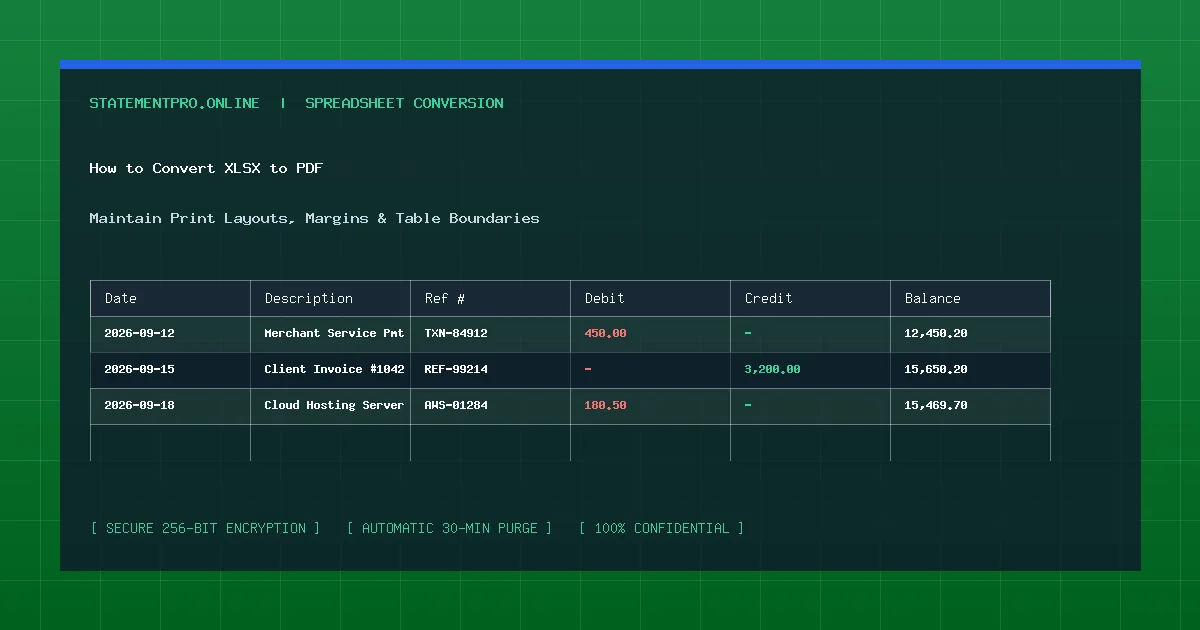
Spreadsheets are the ultimate engine for quantitative analysis, financial modeling, and operational tracking. However, when it comes time to share completed quarterly financial results, executive compensation schedules, or client invoices, sending an unrendered .xlsx file creates significant risks. Different versions of Microsoft Excel, varying screen resolutions, and missing local fonts can scramble your carefully arranged layouts. Using a dedicated XLSX to PDF converter locks your formatting, freezes data values against accidental edits, and produces a flawless, universally readable PDF document.
What Is XLSX to PDF Conversion?
XLSX to PDF conversion is the rendering process that transforms dynamic, grid-based Microsoft Excel workbooks (Office Open XML .xlsx files) into static, resolution-independent Portable Document Format (PDF) files. During conversion, mathematical formulas are evaluated to their final computed visual values, column widths and row heights are scaled to physical page dimensions (such as Letter or A4), and vector vector borders and typography are permanently locked into place.
Why Convert Excel Spreadsheets to PDF?
Distributing documents as PDFs rather than live Excel files provides essential corporate and professional benefits:
- Tamper-Resistant Security: A PDF document prevents unauthorized or accidental changes to underlying formulas, balance figures, and confidential calculation models.
- Universal Cross-Device Presentation: A PDF renders identically whether viewed on a high-end Windows workstation, an iPhone, a Linux terminal, or a Chromebook.
- Professional Print-Ready Architecture: PDFs respect precise paper margins, headers, footers, page orientation (portrait vs. landscape), and pagination breaks.
- Hides Proprietary Calculation Mechanics: Converting to PDF presents the final computed numbers to clients or investors without revealing sensitive proprietary business formulas embedded in cell definitions.
How the XLSX to PDF Rendering Engine Operates
High-quality spreadsheet-to-PDF rendering involves sophisticated visual pagination algorithms:
- Workbook Geometry Parsing: The rendering engine analyzes the workbook’s internal XML schema, identifying active worksheets, column width metrics, row heights, and merged cell coordinates.
- Page Setup Evaluation: The system determines whether page boundaries are set to Landscape or Portrait, checks defined Print Areas, and evaluates scaling directives (such as "Fit All Columns on One Page").
- Vector Font and Grid Line Rasterization: Cell contents, bold headers, background shading, and borders are mapped into vector draw operators (PDF stream commands) to ensure razor-sharp clarity at any zoom level.
- Document Metadata Finalization: The engine attaches document metadata, generates page navigation trees, and outputs a standardized PDF/A-compliant document.
Step-by-Step Guide: How to Convert XLSX to PDF Cleanly
Follow these essential steps to convert your spreadsheets into publication-grade PDFs:
Step 1: Set Your Print Area in Excel
Before initiating conversion, open your workbook and highlight the exact table cells you wish to include. In Excel, navigate to Page Layout > Print Area > Set Print Area. This prevents stray notes or scratch calculations on the periphery of your sheet from appearing in the final PDF.
Step 2: Configure Page Orientation and Scaling
If your table contains more than 6 columns, set the orientation to Landscape under Page Layout > Orientation. In the Scale to Fit section, set Width to 1 Page to ensure columns do not split awkwardly across separate sheets.
Step 3: Convert the Spreadsheet
You can export directly from Excel via File > Export > Create PDF/XPS, or upload your .xlsx file to an online document engine for instant automated conversion.
Step 4: Verify Page Breaks and Final Layout
Open the resulting PDF in a viewer. Verify that table headers repeat appropriately across multi-page tables, that margins are balanced, and that no numeric values have been clipped.
Practical Example: Fictional Executive Summary Conversion
Consider a quarterly balance sheet converted from Excel into a crisp corporate PDF presentation:
| Asset Category | Fiscal 2025 Year-End | Fiscal 2026 Q1 | Variance ($) | Variance (%) |
|---|---|---|---|---|
| Cash and Cash Equivalents | $2,450,000 | $2,890,000 | +$440,000 | +17.96% |
| Accounts Receivable | $1,120,000 | $1,050,000 | -$70,000 | -6.25% |
| Inventory Holdings | $840,000 | $910,000 | +$70,000 | +8.33% |
| Total Current Assets | $4,410,000 | $4,850,000 | +$440,000 | +9.98% |
In the resulting PDF, bold summary rows, right-aligned currency figures, and color-coded variance percentages are permanently locked into a visually striking presentation.
Common Problems in XLSX to PDF Conversion
- Split Columns (The Orphan Column Problem): The single most common issue occurs when wide spreadsheets exceed page margins, causing column G and H to print on separate, isolated pages. Setting the scaling to "Fit Sheet on One Page Wide" resolves this immediately.
- Cells Displaying "###" Error Symbols: If an Excel column is slightly too narrow to display a large formatted number, Excel renders hash marks (
###). In PDF conversion, these hash marks become permanent. Always auto-fit column widths before converting. - Missing Gridlines: By default, Excel gridlines do not appear on PDF printouts unless you explicitly check Page Layout > Gridlines > Print.
Common Mistakes to Avoid
- Leaving Hidden Sheets in the Workbook: Converting an entire workbook to PDF can accidentally publish internal notes or secret calculation tabs. Always select "Active Sheets Only" during export.
- Forgetting Header Repetition: On tables spanning three or more pages, readers lose context if column titles only appear on page 1. Use Print Titles > Rows to repeat at top to repeat headers on every page.
- Using Low-DPI Rendering: Low-quality converters produce pixelated charts. Ensure your renderer maintains a minimum of 300 DPI vector output.
Privacy and Document Confidentiality
Financial workbooks carry sensitive executive strategies and payroll registers. When utilizing automated web tools, verify that documents are processed over encrypted TLS connections, never stored in permanent databases, and automatically purged from server memory within 30 minutes.
Frequently Asked Questions
How do I make an entire Excel sheet fit on one PDF page?
In Excel, open the Page Setup dialog, select the "Page" tab, and click "Fit to 1 page(s) wide by 1 tall". Alternatively, select "Fit Sheet on One Page" in the print settings.
Will hyperlinks embedded in Excel cells remain clickable in the PDF?
Yes. Standard PDF conversion engines preserve active HTTP hyperlinks embedded in Excel cells, allowing readers to click through to external references.
Can I convert an Excel workbook with multiple tabs into a single PDF?
Yes. Under Excel’s export options, change the publish settings from "Active Sheet" to "Entire Workbook" to generate a multi-page PDF containing all worksheet tabs.
Related StatementPro Tools
- PDF to Excel Converter: Convert PDF documents back into editable Excel (.xlsx) workbooks.
- CSV to Excel Converter: Transform raw data files into polished Excel spreadsheets.
- Excel to CSV Converter: Export clean CSV data directly from Excel workbooks.
Related Guides & Tutorials
- How to Convert PDF to Excel Without Manually Copying Data
- How to Check a Converted Excel File for Errors
- How to Clean Data After PDF to Excel Conversion
- How to Organize Transaction Data in Excel
Conclusion
Utilizing a professional XLSX to PDF converter is the ultimate step in creating polished, tamper-resistant financial reports and commercial documents. By mastering print areas, scaling parameters, and vector rendering, you can share spreadsheets with total confidence in visual layout and presentation quality.